
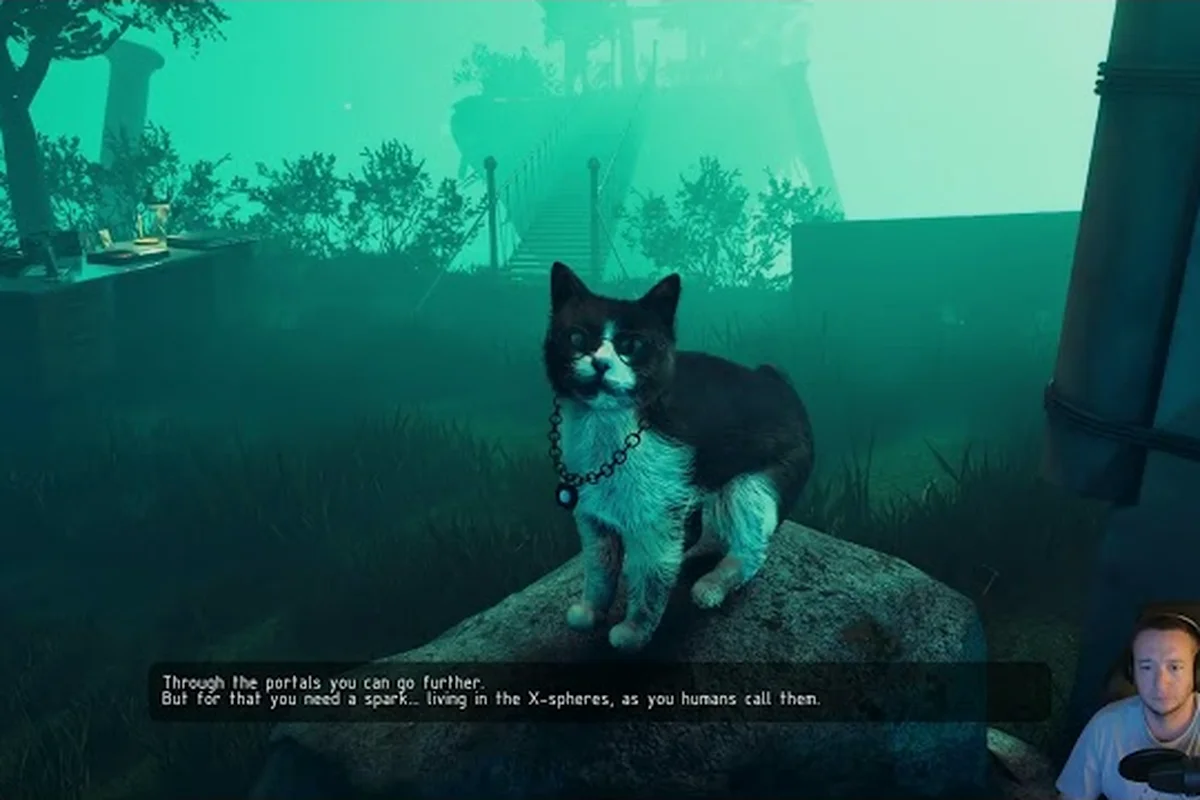
ASPIS controller support matters because an imprecise input setup can make aiming, exploration, and menu navigation feel unreliable. The game supports full controller input on PC, while separate X and Y mouse inversion and a maximum field of view of 120 degrees were documented in the demo’s technical updates.
The following setup uses those official details to help you create dependable ASPIS best settings for keyboard, mouse, and pad play.
ASPIS Controller Support and Official Input Details
ASPIS lists full controller support on its official Steam store page, confirming that a gamepad is a supported way to play on PC. The store listing describes ASPIS as a single-player experience developed and published by Dream Wire Games, set in an alternate-history USSR in 1987.
That official support statement does not identify specific controller models, button layouts, dead zones, or stick response curves. It also does not publish a complete settings list, a keybind table, or controller presets. Any detailed recommendation for a particular Xbox or PlayStation-style pad should therefore be treated as a practical starting point rather than an official preset.
| Verified input topic | Official information | Practical meaning |
|---|---|---|
| Controller support | Full controller support is listed on Steam | A standard PC gamepad can be used with ASPIS |
| Mouse inversion | Separate X and Y inversion controls were documented in demo updates | Check both axes instead of assuming one global switch |
| Field of view | The demo update documented a maximum FOV of 120 degrees | The available range may differ in the full release |
| Platform | PC, single-player | The published focus is keyboard/mouse and controller play on PC |
| Published presets | No official controller preset or dead-zone chart | Model-specific values may require personal adjustment |
The most important distinction is between official support and community workarounds. ASPIS confirms controller support, but it does not publish a per-device calibration chart. If a particular pad feels wrong, begin with a clean profile, compare it with mouse input, and change only one control at a time so you can identify the source of the problem.
Documented Controller and Input Facts
The official input information gives you a solid foundation for troubleshooting. First, the game is intended to accept a controller, so input should not require unofficial software merely because a button is not responding. Second, inversion is axis-specific, which means a horizontal correction will not necessarily fix vertical movement. Third, the FOV setting is available and has reached 120 degrees in the documented demo build.
For broader game orientation, the ASPIS complete guide explains the opening experience and keyboard controls. Use that guide to learn what actions are needed, then return here to make those actions comfortable on a controller.
Building the Best ASPIS Settings for Keyboard and Pad
A good settings profile starts with a clear purpose: stable movement, predictable aiming, readable interfaces, and a field of view that does not hide important environmental information. Because official material does not provide a complete settings menu or detailed controller chart, the safest approach is to establish a baseline, test it in a safe area, and adjust from there.
| Input type | Starting recommendation | Adjustment trigger |
|---|---|---|
| Mouse and keyboard | Use the game’s standard controls and moderate pointer speed | Correct only the axis that feels reversed or imprecise |
| Controller | Begin with default bindings and neutral stick behavior | Change dead zone, sensitivity, or response only when needed |
| Mixed input | Keep movement and viewing on one device where possible | Simplify controls if accidental inputs or cursor movement occur |
| FOV | Start near the game default | Increase only if the image feels cramped, while checking visibility |
| Menus | Keep navigation on the device you naturally use | Test confirm, cancel, and pause behavior |
Separate movement from visual adjustments
Movement and camera behavior should be tuned independently. A player may want slower horizontal camera movement without reducing the speed of forward movement, while another may find that a high camera speed makes close interactions difficult. Testing the axes one at a time prevents a strong correction from creating an opposite problem.
Axis-specific inversion is particularly useful here. The documented X and Y controls mean you can resolve inverted horizontal or vertical response directly in the game when those options are present in the current build. This is preferable to relying on operating-system mouse software, which can affect menus and other applications.
Use the field of view deliberately
The ASPIS FOV settings supported by the demo’s technical notes allowed a maximum of 120 degrees. That is a documented upper value, not a recommendation to use the widest setting permanently. A wider FOV can show more of the environment, yet it may also make distant objects feel smaller and increase the amount of information competing for attention.
Start near the default setting and increase it gradually. A useful test is to move through a familiar corridor, inspect a room from a doorway, and check whether important objects remain readable. The ASPIS system requirements guide also helps you consider broader performance settings if the game is running on a handheld PC or a system with limited headroom.
Fixing Mouse Inversion and Other Input Problems
An ASPIS mouse inversion fix is usually straightforward: confirm that the game is not reversing an axis twice, then inspect the X and Y inversion controls independently. If inversion persists, rule out mouse software, operating-system pointer options, and Steam Input overrides before modifying more game settings.
| Symptom | Likely conflict | Fix in this order |
|---|---|---|
| Vertical aiming feels reversed | Game inversion, mouse software, or an external profile | Inspect both game inversion axes, then disable external inversion |
| Horizontal aiming feels reversed | X-axis inversion or a saved preset | Reset X inversion only, test, and compare |
| Controller movement drifts | Stick calibration, dead zone, or interference | Recalibrate the pad and test on a clean surface |
| Menus select the wrong item | Analog stick, recenter behavior, or controller mapping | Reassign menu navigation and test every selection |
| Gamepad buttons do not respond | Steam Input profile, focus loss, or unsupported shortcut | Disable overrides and reconnect the controller |
| Cursor jumps during aiming | Combined mouse and controller input | Use one input type for aiming and the other for menus |
Restore a clean input baseline
Begin with a fresh controller profile if ASPIS offers that option, because saved profiles can preserve an old mapping after an update. Disconnect Steam Input or operating-level controller remapping temporarily. Restart ASPIS, reconnect the pad, and test movement, camera control, aiming, and pause navigation before changing anything else.
Clean baseline testing isolates the actual problem. If the controller works while Steam Input is disabled, the original profile is the likely source. If the mouse remains inverted with external mouse software closed, check the in-game X and Y inversion options. If both work independently, the issue is probably a mixed-input configuration rather than a failed controller.
Distinguish dead-zone problems from sensitivity problems
A drifting character may look like excessive analog sensitivity, but a dead-zone adjustment is often the better first step when the character moves while the stick rests near center. Begin with a small change, return to the same open area, and compare idle behavior with deliberate movement. A setting that feels stable at rest can still be too slow during a quick turn, so adjust in stages.
If aiming feels slippery, lower the relevant response rather than radically increasing it. These changes are not documented ASPIS defaults, so treat the values offered by the game or your controller software as the baseline. The goal is not to claim one perfect setting for every device, but to create a setup that feels repeatable.
Testing ASPIS Controller Play by Action
Controller support is most useful when every important action remains understandable without looking at a manual. ASPIS involves exploration, interaction, and combat with a Makarov pistol and melee options, so test the controls in contexts that mimic normal play rather than only in a menu.
| Action to test | What success should look like | Common cause if it fails |
|---|---|---|
| Walk and strafe | Character starts and stops without unwanted drift | Dead zone or noisy stick |
| Turn the camera | Small and large turns feel proportional | Sensitivity or response curve |
| Aim and fire | Direction matches the on-screen reticle | Axis mapping or dual input |
| Interact | Prompt is selected at the expected distance | Button mapping or focus behavior |
| Pause and resume | Menu opens without movement continuing | Pause binding or controller focus |
| Navigate menus | Highlight and confirm follow the intended path | Stick navigation or confirm button |
Test in a controlled order
Start by moving without aiming, then add camera turns, aiming, and firing. Next, test interaction prompts and menu navigation. This sequence reveals whether a problem comes from movement, pointer control, or a button assignment. Because ASPIS is atmospheric and exploration-heavy, accidental camera motion can be more disruptive than a slightly slower response.
One-at-a-time adjustments make every change measurable. If you alter inversion, sensitivity, and dead zone together, a temporary improvement may hide the actual cause. Keep a short note of each setting and the device used, which also helps when testing on more than one controller.
Compare controller and mouse behavior
The same scene can expose differences that menus do not. Walk the same route with each input method and pay attention to turning speed, interaction prompts, and how quickly the character stops. A controller may need a different response profile even when the mouse feels accurate, because analog movement and digital mouse input behave differently in practice.
If you also need help interpreting the story or gameplay systems, the ASPIS game guide can provide broader context. Keep that separate from input tuning: knowing an interaction is available does not confirm that the current controller mapping reaches it reliably.
Applying the ASPIS Settings Guide by Scenario
Different play situations require different compromises. A comfortable precision-first profile favors controlled camera movement and deliberate aiming, while a fast-exploration profile allows quicker turns and a wider field of view. Neither should be treated as an official preset because Dream Wire Games has not published such a set.
| Player scenario | Priority | Suggested starting approach |
|---|---|---|
| First playthrough | Clarity and consistency | Default bindings, default FOV, minimal dead-zone adjustment |
| Controller-only PC | Stable movement and clear prompts | Calibrate the stick, assign menus, then tune sensitivity |
| Mouse and keyboard | Accurate aim and natural cursor | Check X/Y inversion independently and disable conflicts |
| Handheld PC | Readability and stable performance | Moderate FOV, simple mappings, limited background software |
| Large display | Awareness of surroundings | Test a wider FOV while checking object visibility |
A precision-first configuration
Use this approach when aiming feels unstable or the camera moves more than expected. Keep the FOV near the game default, confirm that inversion matches your intended direction, and make only small sensitivity changes. If the controller drifts at rest, apply a modest dead-zone adjustment and repeat the same route.
Precision-first tuning favors consistency over maximum speed. It is especially helpful during close interactions because a smaller camera movement makes it easier to place the reticle or select a prompt. The official Guardian warning also makes careful observation important, since a threat cannot simply be handled by shooting it.
A fast-exploration configuration
This profile is useful when searching rooms, checking corridors, and moving between points of interest. Increase FOV gradually, allow a somewhat quicker camera response, and ensure the stick can stop cleanly without recentering errors. Keep aiming sensitivity separate from general camera speed if the controls permit it.
Fast exploration still needs stopping power in the stick. A pad that turns quickly but drifts afterward can make detailed inspection frustrating. Test both deliberate turns and pauses, because a good exploration profile remains controlled when you stop to examine an object or interact with a device.
A mixed-input configuration
Some players prefer mouse aiming with a controller for menus or movement, but combining devices can introduce unexpected input changes. If ASPIS switches active input methods, test the transition in a menu, while aiming, and during interaction. The safer setup is to choose the device for each category and confirm that no duplicate action occurs.
Resolving Persistent ASPIS Input and Compatibility Issues
When basic adjustments fail, determine whether the problem is game-specific, device-specific, or caused by background software. The official Steam listing supports full controller input, but it does not promise compatibility with every model. Community reports can help narrow the issue, although they remain unverified and should not replace testing on your own setup.
For launch or input problems that extend beyond the controller, consult the ASPIS known issues update. That page can help distinguish an isolated control problem from a broader crash, performance, or startup issue requiring a different solution.
Run a controller isolation test
Connect the pad directly to the PC rather than through a wireless adapter, then close nonessential overlay and remapping software. Restart the game and test the controls. A wired comparison can reveal wireless interference, but it does not prove the device itself is defective.
If the same pad works in another PC game or in the Steam interface, the hardware is probably functional. If it fails only in ASPIS, verify the current build, clear any stored controller profile, and test default mappings. Avoid applying several community-recommended fixes at once because that can conceal which change restored proper behavior.
Check for duplicate input paths
Steam Input, mouse utilities, accessibility software, and vendor control panels can all rewrite movement or aim behavior. Temporarily disable one layer at a time, especially when the issue appears only after a software update. If an overlay also captures pause or menu commands, test the game without it before changing the in-game binding.
Software conflicts are common in PC input chains because several programs can claim the same device. A deliberate isolation test is more reliable than changing random settings, and it leaves a clear record of which layer caused the problem. If the issue follows the controller to another game, investigate the pad or driver; if it stays inside ASPIS, focus on mappings and stored profiles.
Know when to seek official support
The official Steam announcements are the best place to check whether the developer has documented a new patch or input correction. Player reports may describe a problem fixed by a later update, but an old workaround should not be treated as permanent advice. Always compare the current ASPIS version before changing more settings.
Official material also publishes achievements, story facts, and technical updates, which confirms that the studio communicates through Steam. You can watch the ASPIS official launch trailer for current game information, but a trailer is not a substitute for a formal controller compatibility list.
A Reliable ASPIS Controller Configuration Checklist
Use this final pass to confirm that the setup is stable. The goal is not to recreate a single recommended preset, since no official ASPIS settings list exists, but to ensure that movement, viewing, aiming, interaction, and menu navigation all behave as intended.
- Confirm ASPIS recognizes the controller.
- Test movement while the stick rests at center.
- Check X and Y inversion independently.
- Compare mouse and controller aiming directions.
- Verify interaction, pause, confirm, and cancel buttons.
- Adjust the FOV gradually from the default.
- Disable conflicting Steam Input or mouse utilities.
- Retest the same route after each change.
Repeatable input beats maximum sensitivity. A configuration that responds predictably across exploration, interaction, and combat will feel better than an extreme setup that requires constant correction. ASPIS controller support gives PC players a legitimate pad option, and the documented axis controls provide a clean starting point for solving inversion problems.
The best setup is the one that remains accurate under pressure. Keep the official defaults when they work, change one setting at a time, and use the game’s X and Y controls before adding external software. That approach makes troubleshooting faster and helps you keep the experience focused on the strange world inside the system.
Frequently Asked Questions
Does ASPIS support controllers?
Yes. ASPIS lists full controller support on its official Steam page, confirming that standard PC controllers are a supported input method. The developer has not published a complete list of tested models, button layouts, dead zones, or response curves, so controller settings should be treated as a personal baseline rather than an official preset.
How do I fix mouse inversion in ASPIS?
Check the game’s X and Y mouse inversion options separately because the demo’s technical updates documented independent axis controls. If one direction still feels wrong, close mouse utilities and operating-system remapping tools, restart ASPIS, and test again. External inversion can otherwise counteract the correct in-game setting and make the problem seem persistent.
What is the maximum FOV setting in ASPIS?
The demo’s technical documentation states that the maximum field of view was increased to 120 degrees. This confirms the setting and its documented ceiling, but it does not mean every player benefits from using the widest view. Increase FOV gradually and check whether nearby objects remain readable in your play environment.
Should I use mouse inversion with a controller?
Usually, mouse inversion does not need to be enabled for standard analog camera movement. If a controller looks inverted, first review the camera and aiming assignments, then check whether another input device is active. Testing mouse and controller behavior separately can reveal whether the problem belongs to ASPIS or to mixed-input software running in the background.
Are there official ASPIS controller presets?
No official controller presets or per-device calibration chart have been published. Start with the default bindings, calibrate the controller through its own system tools if needed, and adjust the game’s response or dead zone only when testing shows a problem. This produces a more reliable setup than copying values designed for a different controller model.